Overview
Installation
Users Guide
Support
Overview
haneWIN TFTP Server for Windows is a fully-realized TFTP server for all Windows Versions. The TFTP Server runs as a background service and doesn't require permanent attendance. It has been designed to work reliable and secure in background operation mode using a high-performance multithreaded architecture.
The software is implemented in 32- and 64-bit versions.
The software provides a TFTP Server (as application and as NT service)
and TFTP client based on RFCs 1350, 2347-2349 and TFTP mulicast based on RFC 2090.
All TFTP options are supported.
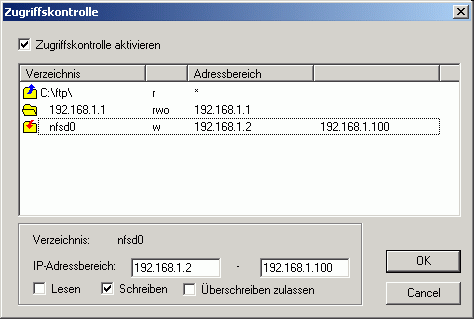
Access control is provided per directory for client IP address and type of
operation.
A native TFTP service is implemented for Windows 200x/XP/Vista/7/8/10.
A Control Panel applet gives interactive access to the service.
Installation
- Requirements
-
Windows 200x/XP/Vista/7/8/10 system configured for TCP/IP
- Installation of the TFTP service on Windows 200x/XP/Vista/7
-
- Install the software by running the setup.
- Use Install TFTP service from the start menu to install the server as service.
- With the control panel applet TFTP Server you can configure and monitor the service.
- Preparation of TFTP Server Application
- Extract the zip-archive, start the application.
Users Guide
The Info Box at startup is displayed only for the unregistered version.
The main windows of the TFTP server displays the status of all active client connections (addresses, progress and type of operation, accessed file).
Running the TFTP server as a Service on Windows 200x/XP/Vista/7
The server can be installed as a service on Windows 200x/XP/Vista/7 for background operation. The service can be configured and monitored by the Control Panel Applet TFTP Server.
- The Service is installed with the command:
TFTP4NT -install
and automatically started on Windows startup. The service can be started and stopped manually through the service control panel. - Use the command
TFTP4NT -remove
to stop and remove the TFTP server service.
- Menus
- File
- Start
- if selected the server accepts new connections.
- Stop
- if selected new connection requests to the server are inhibited. Active connections are not affected.
- View log
- displays a log of all TFTP client requests.
- Exit
- terminates the program
- Options
- Preferences
-
for changing configuration settings.
General
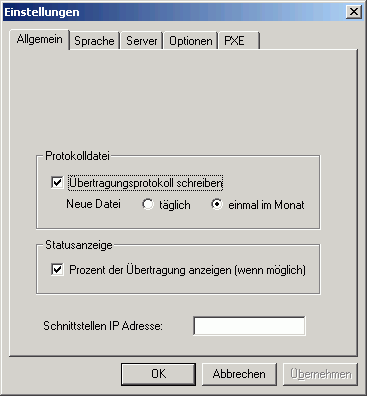
By default the Server is started on all local interfaces. You can restrict the server to one interface only by specifying the local interface IP address.Server
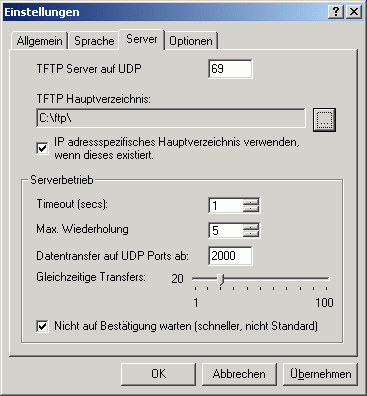
A server root directory must be defined. Any client access outside of the root directory tree is denied. An option enables the server to use a subdirectory of the root directory as a client specific root directory. If this option is enabled and a subdirectory with the IP address of the client exsists, it will be used as the root directory for the client.
The sever allows indicating the range of UDP ports, used for transmitting the data. This allows network administrators to regulate firewall rules, approving the traffic, generated by the server. The UDP port range is defined by specifying the first UDP data port and the number of active clients.Options
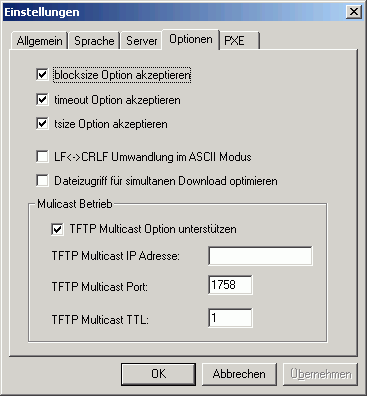
As part of a request TFTP clients can send options to the server. The server can accept or reject the options.- The blocksize option allows the client to choose a data packet size greater than 512 bytes.
- The timeout option allows the client to choose the timeout value for retransmissions. Otherwise the timeout value set on the server will be used.
- With the tsize option the client can inform the server about the total size of the transfered data.
With TFTP Multicast clients can download a file simultanously. The file is sent by the server to the specified multicast address and port. If more than one multicast transfer is started the multicast port number is incremented.PXE
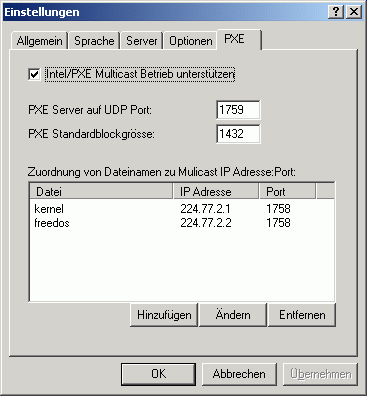
The Intel/PXE specification uses a different protocol for multicast operation. Multicast configuration parameters are sent to clients using DHCP options.- Multicast requests are directed from a client to an extra server port.
- The default blocksize is 1432 bytes.
- Each file downloaded using multicast operation is send to an unique multicast IP address and port.
- Access control
-
Gsrtc Print Ticket May 2026
There are two primary ways to print your GSRTC ticket: via the official website or via the mobile app.
For elderly passengers unfamiliar with technology, here is a simplified checklist to GSRTC print ticket at a common service center (CSC):
How to check: When you booked the ticket, you selected a radio button for either "E-Ticket" or "M-Ticket". If you selected E-Ticket, ensure you follow the printing steps above.
It is crucial to understand which type of ticket you possess, as this affects whether you need to print it.
Users often face technical glitches. Here is how to fix them:
Safe travels!
This report outlines the procedures for retrieving, printing, and managing e-tickets from the Gujarat State Road Transport Corporation (GSRTC). Carrying a physical printout of your e-ticket along with a valid photo ID is a mandatory requirement for travel on GSRTC services. 1. How to Retrieve and Print Your GSRTC Ticket
If you have booked your ticket online or via the mobile app, you can easily access a printable version through the GSRTC Print Ticket Portal. Online Retrieval:
Navigate to the "View/Print Ticket" section on the GSRTC Website.
Enter your PNR Number (provided at the time of booking) and your Registered Mobile Number. Click Submit to view your reservation voucher. Printing Options:
Once the ticket is displayed, you can select the Print option to generate a hard copy if a printer is connected. Gsrtc Print Ticket
Alternatively, you can Save as PDF to your mobile device or computer for later printing. Counter Printing:
For bookings made via the GSRTC phone service, you must visit the nearest GSRTC Reservation Counter.
Present your Phone Booking Reference Number and pay the fare to receive an authorized physical ticket copy. 2. Essential Information Included in the Printout
A standard GSRTC e-ticket voucher contains critical journey and payment data: GSRTC - Print / SMS Ticket
GSRTC Print Ticket: A Complete Guide to Managing Your Digital Bus Pass
The Gujarat State Road Transport Corporation (GSRTC) has revolutionized bus travel in Gujarat by moving away from traditional paper-only systems. While booking online is simple, many travelers often find themselves needing a physical or digital copy of their ticket for verification or personal records. Whether you lost your SMS confirmation or simply prefer a hard copy, here is everything you need to know about the GSRTC print ticket process. Why You Might Need to Print Your GSRTC Ticket
While GSRTC conductors typically accept digital tickets (SMS or E-mail) on your smartphone, having a printed copy can be a lifesaver in specific situations. If your phone battery dies, or if you are traveling in a remote area with poor network connectivity, a physical printout ensures you have proof of travel. Additionally, some corporate travelers require a printed ticket for expense reimbursement and tax purposes. Step-by-Step Guide to Print Your Ticket Online
The most reliable way to retrieve your ticket is through the official GSRTC web portal. Follow these steps:
Visit the Official Website: Navigate to the GSRTC online booking portal.
Locate the Print/Modify Tab: On the homepage, look for the "Print/Modify Ticket" or "Ticket Status" option. There are two primary ways to print your
Enter Your Credentials: You will be asked to provide your Ticket Number (found in your confirmation SMS) and the Mobile Number used during booking.
Search and View: Click the search button. Your ticket details, including seat number, boarding point, and bus type, will appear on the screen.
Save or Print: Click the "Print" icon. You can then choose to print it directly to a connected printer or "Save as PDF" to keep a copy on your device. How to Retrieve a Lost Ticket Number
If you have misplaced your ticket number, do not panic. GSRTC provides a "Search Ticket" feature where you can find your booking using your mobile number and the date of journey. Alternatively, you can check your email inbox for a message from GSRTC, which is sent automatically upon successful payment. Printing via the GSRTC Mobile App
For those on the move, the GSRTC mobile application offers a seamless way to manage bookings. By logging into your account, you can access the "My Bookings" section. From here, you can download the ticket as a PDF file, which can then be sent to any wireless printer or shared via messaging apps. Essential Tips for a Smooth Journey
Always carry a valid photo ID along with your printed ticket, as conductors are required to verify the passenger's identity. If you have booked a discounted ticket (such as for students or senior citizens), ensure you have the relevant supporting documents ready for inspection.
By following these simple steps for a GSRTC print ticket, you can ensure a stress-free travel experience across the vibrant landscapes of Gujarat. From the bustling streets of Ahmedabad to the serene beaches of Somnath, your journey starts with a well-managed ticket.
How to Print Your GSRTC Ticket Online: A Step-by-Step Guide Printing your GSRTC (Gujarat State Road Transport Corporation) ticket is a straightforward process whether you are a registered user or a guest. Having a physical or digital copy is essential, as passengers must present their e-ticket along with a valid original photo ID during the journey. Quick Methods to Print/Download Your Ticket
You can retrieve and print your GSRTC ticket using several methods depending on how you booked it. 1. Using the GSRTC Official Website (PNR Method)
This is the most common way to reprint a lost ticket or get a hard copy for travel. Step 1: Visit the official GSRTC Print/SMS Ticket page. How to check: When you booked the ticket,
Step 2: Enter your PNR Number and the Mobile Number used during booking.
Step 3: Click 'Submit.' Your booking details will appear on the screen.
Step 4: Select the 'Print' option to generate a PDF or send it directly to your printer. 2. Via the GSRTC Mobile App
If you are on the go, the official GSRTC App on Google Play allows you to view and resend ticket details. Open the app and tap the menu (three lines). Select 'View SMS Ticket' or check your booking history.
Enter your registered email ID or mobile number to see all past and upcoming journeys. 3. For Guest Users (No Login Required)
If you booked without creating an account, you can use the View Ticket Guest User portal. You will need to provide details such as your PNR, OB Reference Number, and Journey Date. Important Guidelines for Traveling with GSRTC GSRTC - Print / SMS Ticket
This keyword "GSRTC print ticket" often confuses two different things:
1. Online E-Ticket (Print at home):
2. Counter Ticket (Physical slip):
- Help
- Contents
- starts a HTML browser displaying the manual.
- Register
- prompts for the license key and your name, company. Check the Info menu to find out if the license information was accepted.
- Show License
- displays the conditions for using this software.
- About...
- displays program version information.
Using the TFTP Client
TFTP.EXE is a Win32 command line TFTP client.The implementation of the client as a command line program allows easy use of the client for automated tftp data transfer from application or procedures.
Usage: tftp [Options] server GET|PUT file [local]
- server: IP address or name of the TFTP server
- file: Name of file to transfer
- local: Local name of file
- Options:
- -a mode ASCII, default OCTET
- -b<blocksize> block size in bytes, default 512
- -d write debug messages
- -l show transfer activity
- -o override if local file exists
- -p pipe: send data from stdin/receive data to stdout
- -r<retries> number of retries on timeout
- -s disable transfer size option, default enabled
- -t<timeout> retransmission timeout in seconds, default 1s