Here you will also find some other classic apps, such as WordPad, classic Calculator, Sticky Notes, and more.
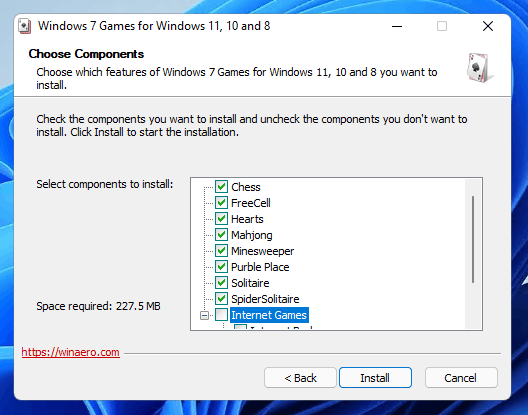
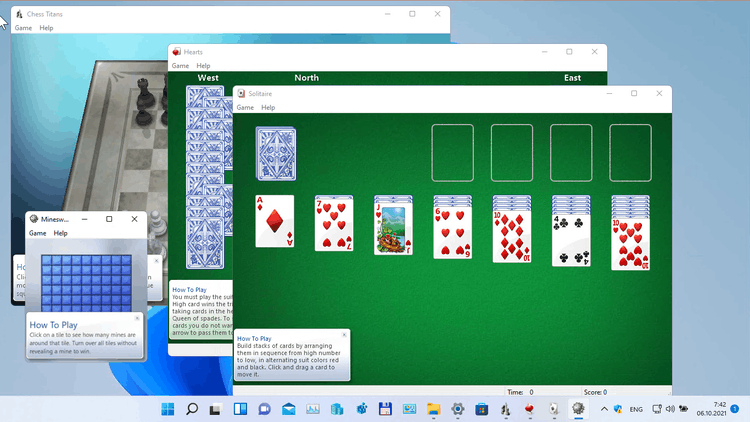
Starting in Windows 8, the OS comes without the classic Windows 7 games. They are no longer included with Windows 11, Windows 10 and Windows 8.1. Here is a Windows 7 Games package which solves this issue. This Windows 7 Games package is compatible with all builds of Windows 11, Windows 10, Windows 8.1 and Windows 8.
It includes the following software:
For more details on how to install and use the games, check out this tutorial.
The package has been updated to version 4.0. It now supports Windows 11 and fixes the error "Error opening file for writing: C:\Windows\System32\en-US\cmncliM.dll.mui". The installer no longer tries to write anything to the system32 directory. Finally, the setup file size has been reduced to a half thanks to the new packaging and compression method. The non-working Game Explorer will no longer be installed. The installer now supports HiDPI displays. Finally, the Internet Games set is now optional, since Microsoft has turned off the game servers, making it nearly impossible to play them.
The package retains support for older Windows version, i.e. Windows 8.1/8 and Windows 10. You can use this new version of the package on older Windows versions too.
The package can be installed in unattend mode. Use the following command line: 'Windows 7 Games for Windows 11, 10 and 8-4.0-setup.exe' /SP- /SILENT.
Games support the complete set of MUI (language packs), so they will run in your native language. The following languages are supported.
ar-SA, bg-BG, cs-CZ, da-DK, de-DE, el-GR, en-US, es-ES, et-EE, fi-FI, fr-FR, he-IL, hr-HR, hu-HU, it-IT, ja-JP, ko-KR, lt-LT, lv-LV, nb-NO, nl-NL, pl-PL, pt-BR, pt-PT, ro-RO, ru-RU, sk-SK, sl-SI, sr-Latn-CS, sv-SE, th-TH, tr-TR, uk-UA, zh-CN, zh-TW
6915776e857ea9cb4953668d51437643d2377f866a61a62e60ab125b807844ff *Windows 7 Games for Windows 11, 10 and 8-4.0-setup.exe
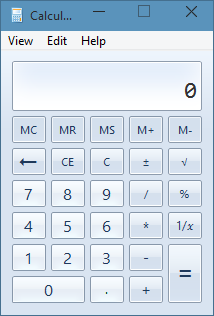
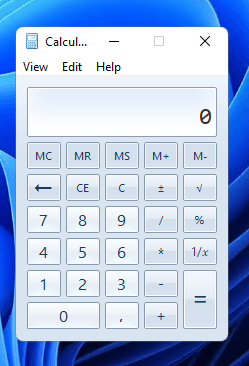
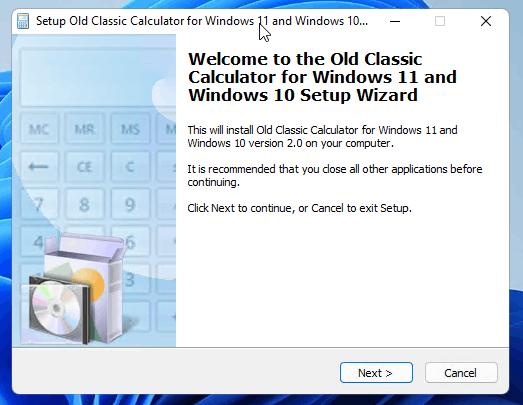
Microsoft has removed the classic calculator app starting in Windows 10 and replaced it with a new UWP app that receives updates from the Store. Many people aren't happy with this change. The classic app loaded faster, and was more useful for mouse and keyboard users. Here you can get the classic calculator back in Windows 11 and Windows 10.
This package supports Windows 11 and Windows 10 (both Windows 10 32-bit and Windows 10 64-bit).
The Calculator app will be revived completely, e.g. you will be able to launch it as "calc.exe" from the Run dialog or from the taskbar search box or from Cortana. It will have the same interface language as your operating system. If you will decide to revert to the Modern Calculator app, just uninstall the "Old Classic Calculator" app from the Settings -> Apps - > Apps & features.
It comes with almost the full set of MUI files, so it will be in your native language out-of-the-box. The following locale list is supported: ar-sa, bg-bg, cs-cz, da-dk, de-de, el-gr, en-gb, en-us, es-es, es-mx, et-ee, fi-fi, fr-ca, fr-fr, he-il, hr-hr, hu-hu, it-it, ja-jp, ko-kr, lt-lt, lv-lv, nb-no, nl-nl, pl-pl, pt-br, pt-pt, ro-ro, ru-ru, sk-sk, sl-si, sr-latn-rs, sv-se, th-th, tr-tr, uk-ua, zh-cn, zh-hk, zh-tw.
Starting with Windows 11 Build 26020, Microsoft has removed the classic WordPad editor from clean installs, and then removed it from existing installations with an update. So the app has gone and can't be reintalled from any official source. Microsoft has deprecated it and instists on using Word and Notepad instead of WordPad.
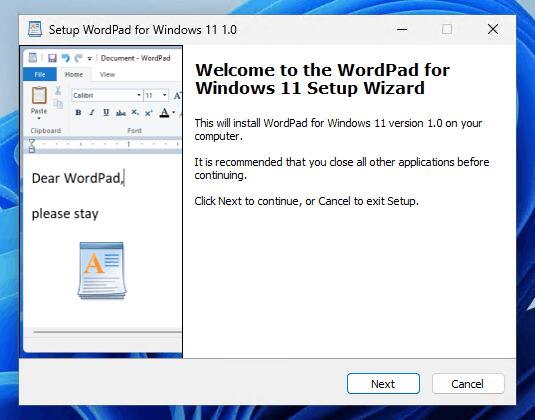
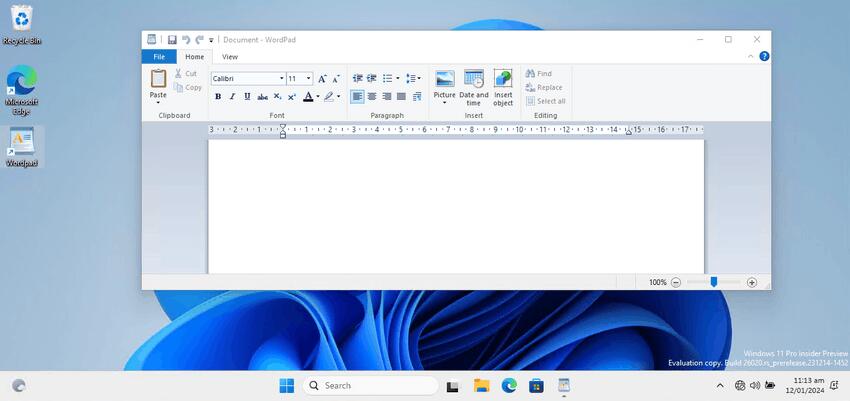
Here's the package that restores WordPad in Windows 11. It is built of genuine files that aren't tampered with. It will bring back the editor to your Start menu, and can also create a desktop shortcut if you want it.
This package supports Windows 11, and containts both 32-bit and 64-bit files.
The WordPad app will have two its classic commands, e.g. you will be able to launch it as "write.exe" and "wordpad.exe" from the Run dialog or from the taskbar search. It will have the same interface language as your operating system, as it comes with MUI resources. Finally, it supports an uninstaller, so you can uninstall this WordPad app from the Settings > Apps > Installed apps.
It comes with almost the full set of MUI files, so it will be in your native language out-of-the-box. The following locale list is supported: ar-sa, bg-bg, cs-cz, da-dk, de-de, el-gr, en-gb, en-us, es-es, es-mx, et-ee, fi-fi, fr-ca, fr-fr, he-il, hr-hr, hu-hu, it-it, ja-jp, ko-kr, lt-lt, lv-lv, nb-no, nl-nl, pl-pl, pt-br, pt-pt, ro-ro, ru-ru, sk-sk, sl-si, sr-latn-rs, sv-se, th-th, tr-tr, uk-ua, zh-cn, zh-hk, zh-tw. It doesn't install every single language, instead if checks what language you are using and extracts only the required files to save your disk space.
The Wordpad installer since version 2.0 not only extracts the files, but also does the following extra tasks:
Windows 11 provides by default a modern Notepad app with advanced features like tabs, auto-save documents, dark theme, a longer undo history, and much more. But yet many users prefer the classic Notepad without those enhancements. It works faster, starts faster, and more lightweight when it comes to system resources.
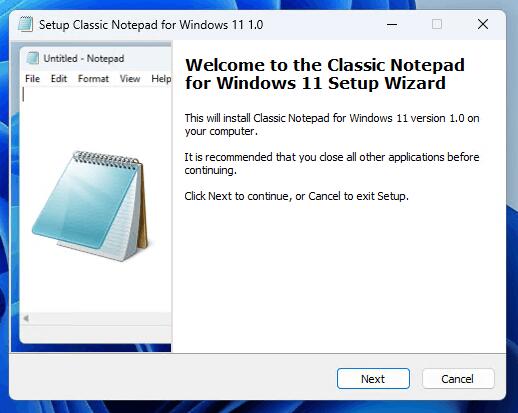
Here you can download the installer that adds the classic Notepad to Windows 11. It is built of genuine files from Windows 10 22H2 that aren't tampered with. The app can coexist with the modern one, and will be present in the Start menu, context menu in File Explorer, and can also have a desktop shortcut if you enable it in the installer.
This package containts both 32-bit and 64-bit files.
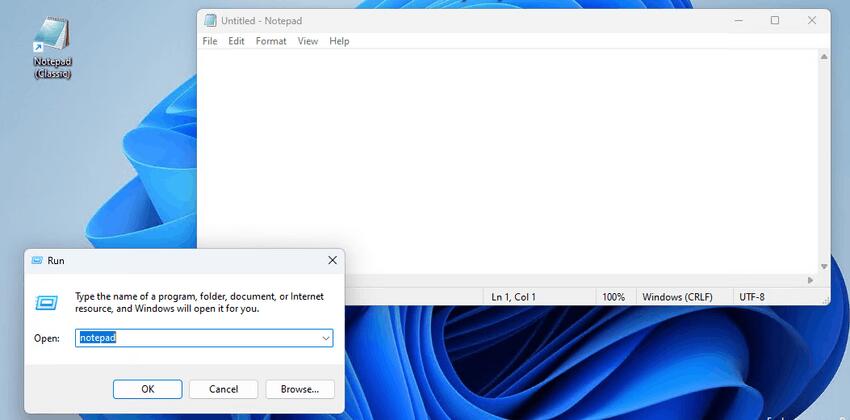
To work properly and handle file associations, you need to disable the app execution alias in Settings. When installing the Classic Notepad, you will be asked to open the Settings app, and turn off the alias manually. After that, the installer will register it for the classic app. So you'll be able to launch it as "notepad.exe" from the Run dialog. It will have the same interface language as your operating system, as it comes with MUI resources. Finally, it supports an uninstaller, so you can uninstall this classic Notepad app from the Settings > Apps > Installed apps.
It comes with almost the full set of MUI files, so it will be in your native language out-of-the-box. The following locale list is supported: ar-sa, bg-bg, cs-cz, da-dk, de-de, el-gr, en-gb, en-us, es-es, es-mx, et-ee, fi-fi, fr-ca, fr-fr, he-il, hr-hr, hu-hu, it-it, ja-jp, lt-lt, lv-lv, nb-no, nl-nl, pl-pl, pt-br, pt-pt, ro-ro, ru-ru, sk-sk, sl-si, sr-latn-rs, sv-se, th-th, tr-tr, uk-ua, zh-cn, zh-hk, zh-tw. But it doesn't install all available language files. Instead if checks what language you are using and extracts only the required files to save your drive space.
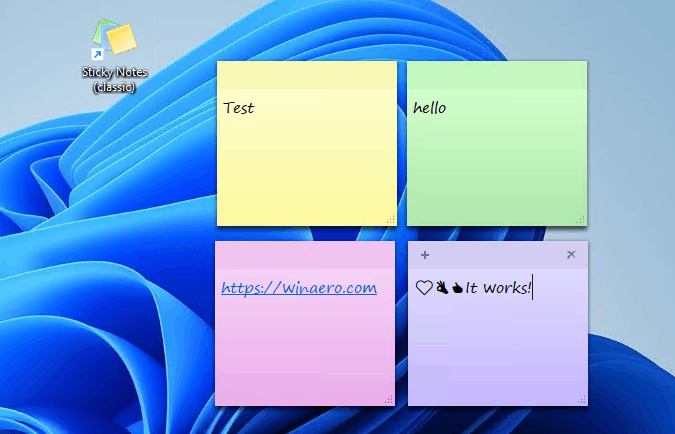
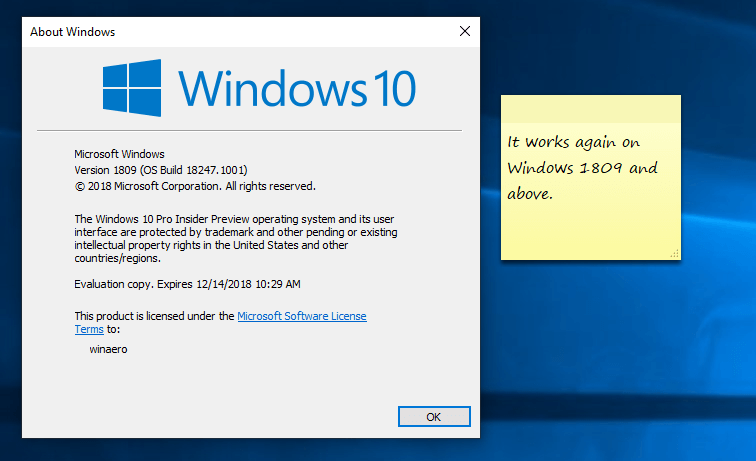
Starting in Windows 10 Anniversary Update, Microsoft replaced the classic desktop Sticky Notes app with a Universal app. For many users, the classic Desktop app is the more preferable option. It works faster, starts faster and has no Cortana integration.
Many prefer the good old classic Sticky Notes app because it consumes notably less system resources. It starts immediately and works much faster. The performance difference is especially visible on less powerful hardware like Atom and Celeron CPUs. The notes themselves are also a bit smaller, so users like their compact appearance more.
Here you can get the Classic Sticky Notes app for Windows 11 and Windows 10. This package fully supports Windows 11, as well as both Windows 10 32-bit and Windows 10 64-bit.
It comes with almost the full set of MUI files, so it will be in your native language out-of-the-box. The following locale list is supported: ar-sa, bg-bg, cs-cz, da-dk, de-de, el-gr, en-gb, en-us, es-es, es-mx, et-ee, fi-fi, fr-ca, fr-fr, he-il, hr-hr, hu-hu, it-it, ja-jp, ko-kr, lt-lt, lv-lv, nb-no, nl-nl, pl-pl, pt-br, pt-pt, ro-ro, ru-ru, sk-sk, sl-si, sr-latn-rs, sv-se, th-th, tr-tr, uk-ua, zh-cn, zh-hk, zh-tw.
You can uninstall the app any time from Settings - Apps and features.
Attackers try "Spring2024", "Summer2024", "Password1" across thousands of accounts. Solution: Enable Azure AD Smart Lockout (locks the source IP, not just the user).
Managing the Office 365 password ecosystem is a continuous journey. From simple self-service resets to hybrid synchronization and passwordless futures, the choices you make today define your security posture tomorrow.
At SystemTutos, we provide the tutorials, scripts, and best practices to turn your Office 365 tenant into a fortress. Don't wait for a breach to review your password policy.
Call to Action:
Secure your identity. Secure your business. SystemTutos has you covered.
Need specific PowerShell scripts for bulk password resets or audit logs? Leave a comment below or contact the SystemTutos support team.
Microsoft 365 (formerly Office 365) password management focuses on balancing high security with user accessibility through specific complexity rules and administrative policies. Password Requirements & Security Standards
For maximum account protection, Microsoft recommends going beyond the technical minimums: Minimum Length : While the system requires at least 8 characters, Microsoft Support Microsoft 365 Admin recommend a minimum of 14 characters Microsoft Learn Complexity
: Passwords should include a mix of uppercase letters, lowercase letters, numbers, and symbols. Microsoft Support App Passwords
: For older applications that don't support multi-factor authentication (MFA), you can generate unique "App Passwords" through the Security & Privacy section of your Office 365 My Account page Administrative Management
Administrators can control how passwords function across an entire organization: Expiration Policies
: To prevent frequent, forced changes (which often lead to weaker passwords), admins can set passwords to never expire Microsoft 365 Admin Center Settings > Org Settings > Security & Privacy Intermedia Global Overrides
: Specialized IT tasks, such as setting specific users to "never expire" outside of the global policy, can be managed via PowerShell using the Azure Active Directory Module. Spiceworks Community Recovery Procedures
If a password is lost or forgotten, the standard recovery path involves: "Forgot password?" on the sign-in page.
Verifying identity through a secondary email or phone number. Entering a verification code to create a new credential. Microsoft Support for added security? Password policy recommendations - Microsoft 365 admin
The search results provided don't directly link to a specific "systemtutos" story. However, "SystemTutos" is a known name in the online tech community, often associated with scripts, tutorials, and workarounds for software like Office 365.
Here is a short story inspired by that digital underground, where code meets the cloud. The Script of the Ghost Office 365 -Password- systemtutos-
The fluorescent lights of the IT office hummed, a low-frequency buzz that matched the static in Leo’s brain. His screen was a wall of red:
“Subscription Expired. Your account has been deactivated.”
Leo was a freelance designer with three deadlines and exactly zero dollars in his bank account. He’d spent his last fifty on a coffee and a dream, and now Microsoft was locking the door to his own portfolio.
"Think, Leo," he whispered, his fingers hovering over the mechanical keyboard. "There’s always a back door."
He bypassed the official forums—too many corporate badges—and dived into the deeper layers of the web. That’s where he saw it: a minimalist blog titled SystemTutos
. No flashing banners, no "Click here for free money." Just a single, pinned post with a curious title: “The 365 Key: A Lesson in Persistence.”
The instructions were poetic. It wasn’t a crack or a virus; it was a script. A series of commands that spoke directly to the registry, telling the software that time was an illusion. “Enter the CMD,” the tutorial read. “Speak to the machine in its native tongue.”
Leo opened the command prompt. The black window stared back at him, an empty void waiting for a spark. He began to type, copying the strings from SystemTutos. With every line, he felt like he was picking a digital lock. cscript ospp.vbs /sethst:://msguides.com
The cursor blinked. One second. Two. Then, a message appeared in white text:
The red bar on his Word document vanished. The "buy now" pop-ups retreated like shadows from a flashlight. Leo sat back, his heart racing. He looked at the SystemTutos page one last time before closing the tab. At the bottom of the screen, in tiny, grey text, was a final note:
“We don’t own the tools. We only keep them sharp. Use this to build something that lasts.”
Leo didn't waste another minute. He opened his design software and started to create. The ghost in the machine had given him a second chance, and he wasn't going to let the script go to waste.
this into a longer tech-thriller, or are you looking for the actual steps to troubleshoot an Office 365 password issue?
Office 365 Password Management: A Comprehensive Guide
As an Office 365 user, you understand the importance of maintaining strong and unique passwords for your account. However, with the increasing number of online accounts and passwords to remember, it's easy to get overwhelmed. In this blog post, we'll discuss the best practices for Office 365 password management and provide you with some valuable tips to keep your account secure.
Why is Password Management Important?
Your Office 365 password is the key to accessing your email, documents, and other sensitive data. A weak or compromised password can put your entire account at risk of being hacked or compromised. Here are some reasons why password management is crucial:
Best Practices for Office 365 Password Management
Here are some best practices to help you manage your Office 365 password effectively:
Office 365 Password Management Tools
Here are some tools to help you manage your Office 365 password:
Tips for Office 365 Password Management
Here are some additional tips to help you manage your Office 365 password:
Conclusion
In conclusion, Office 365 password management is a critical aspect of maintaining the security and integrity of your account. By following best practices, using password management tools, and staying vigilant, you can protect your account from unauthorized access and data breaches. Remember to use strong passwords, enable multi-factor authentication, and change your password regularly to keep your account secure.
SystemTutos Recommendation
At SystemTutos, we recommend using a password manager like LastPass or Microsoft Password Manager to store and manage your Office 365 password. Additionally, enable multi-factor authentication and password expiration policies to add an extra layer of security to your account.
By following these tips and best practices, you can ensure that your Office 365 password is secure and your account is protected from unauthorized access.
Mastering Office 365 Password Management: A Comprehensive Guide by SystemTutos
In today's digital landscape, password management is a critical aspect of maintaining security and integrity across all online platforms. Microsoft's Office 365, a powerhouse of productivity tools, is no exception. With the increasing reliance on cloud-based services, the importance of robust password policies and practices has never been more pronounced. This article, brought to you by SystemTutos, aims to provide an in-depth look at Office 365 password management, covering best practices, security features, and troubleshooting tips to ensure your Office 365 experience is both secure and seamless.
This article explains how to create strong passwords for Office 365 (Microsoft 365), enable and use multi-factor authentication (MFA), manage passwords as an admin, and recover or reset accounts when users forget passwords.
The Office 365 password system is secure by design when correctly configured. Any external or internal tool named “systemtutos” must never handle O365 passwords directly. The only safe integration is federated authentication (SSO) using Microsoft Entra ID. Secure your identity
If “systemtutos” is actually a typo for System Center or Microsoft Tutorials, please clarify for a revised report.
Next steps:
Let me know if you meant something else by “systemtutos” — for example:
I can tailor the report exactly.
In the sterile glow of Level 4, Elias sat before a flickering terminal. His task was simple: manage the Password resets for the monolithic Office 365 architecture that kept the city-state of Neo-Veridia running.
To the citizens, it was just software. To Elias, it was a digital cage.
One night, a strange prompt bypassed his firewall. It wasn't a standard ticket; it was a cryptic file titled systemtutos.
Curiosity overrode protocol. When Elias clicked, he didn't find technical tutorials. Instead, the "systemtutos" were logs—ghosts of the people the corporation had "archived" to save on server costs. Every reset he performed wasn't just updating a password; it was overwriting the digital remains of a human consciousness.
The prompt blinked: “Enter New Password to Authorize Deletion.”
Elias looked at the name on the screen—his own sister, missing for years. His fingers hovered over the keys. He realized the system wasn't just managing data; it was hungry for it. To save her soul from the "Office," he had to break the code, even if it meant the whole system—and his world—would go dark.
Should this story lean more into cyberpunk horror or a corporate conspiracy thriller?
If you know your current password but want to change it for security reasons:
SystemTutos Pro Tip: Always log out of all devices after a password change. Use the "Sign out everywhere" option in the Security Info dashboard to revoke old tokens.
SystemTutos Warning: If you change your on-prem password, you must wait 2-15 minutes for it to sync to Office 365. Plan password reset windows accordingly.
This is a cardinal sin. If a user must share access, use Privileged Identity Management (PIM) or Shared Mailboxes with delegation—never the raw password string.
Since “systemtutos” is not a recognized Microsoft service, we assume it is an internal or third-party training/tutorial platform that may: Need specific PowerShell scripts for bulk password resets
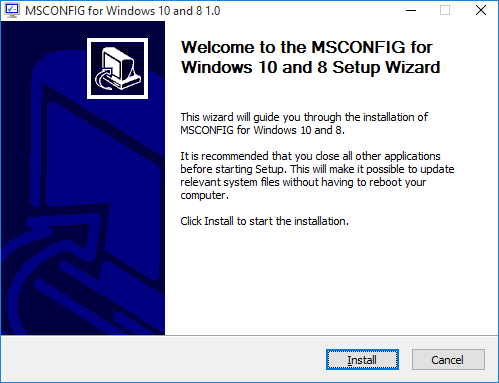
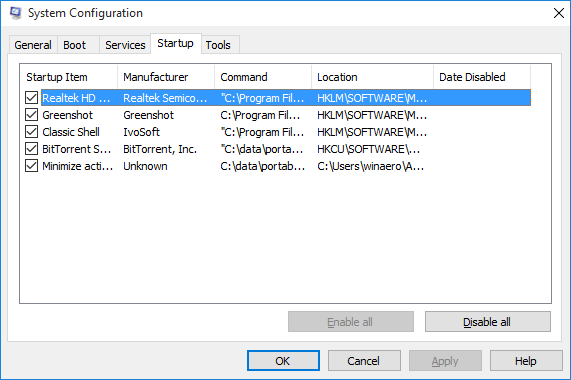
Windows 10 and Windows 8 assume that you use Task Manager for managing your startup apps. If you prefer to use the good old msconfig.exe tool for that, you must be aware that this feature is no longer included in Windows 10 and Windows 8. Here you can get classic msconfig.exe back in Windows 10 and Windows 8 that still includes the "Statup" option.
The installer inlcudes the classic msconfig.exe app with the startup tab in the msconfig UI so you will be able to manage your startup apps. It handles the "msconfig" command in the Run dialog. Also, it doesn't replace system files, instead it adds a new file, %windir%\system32\msconfig1.exe.
You can uninstall the app any time from Settings - Apps and features.
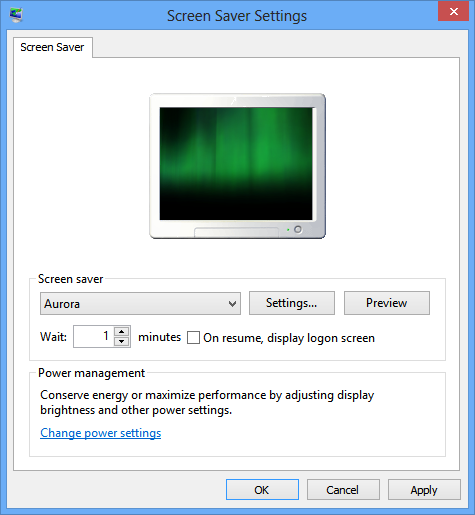
The Aurora screen saver for Windows 10, Windows 8.1, Windows 8, and Windows 7. It was shipped with Windows Vista but was removed in Windows 7 and higher.
The pack contains the Aurora screensaver for 32bit and 64bit Windows versions. Use the appropriate file. Note that the exe file is nothing more than just a handy GUI for the file copy operation.
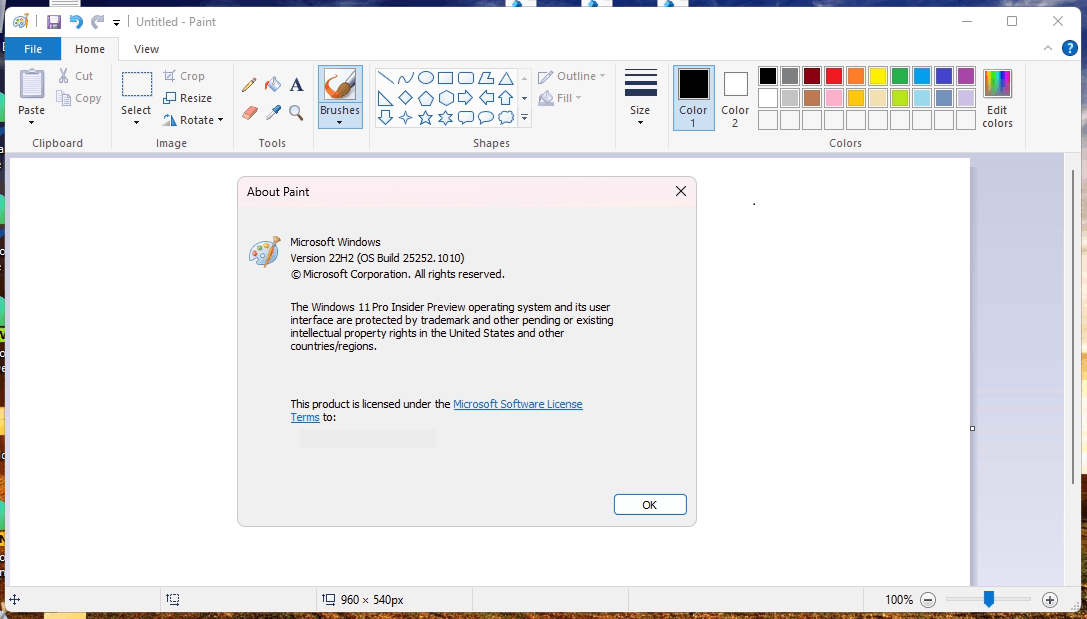
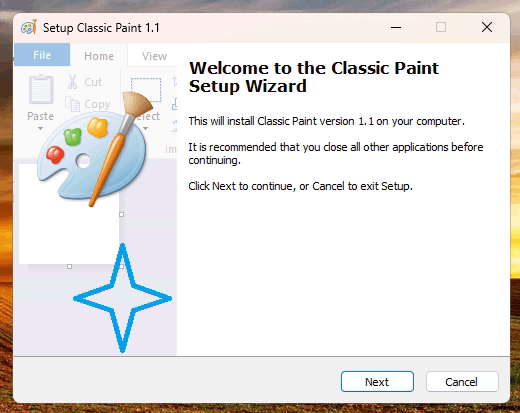
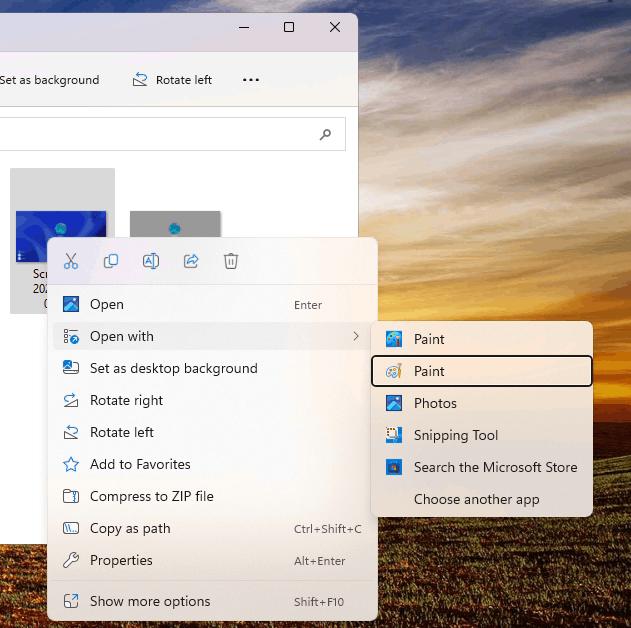
The classic Paint (mspaint) app taken from Windows 10 Build 14393. You can install it on Windows 11 and enjoy the faster and more usable image editor than the built-in one. Another good thing is that this Paint app doesn't include the "Paint 3D" button and Store promotion.
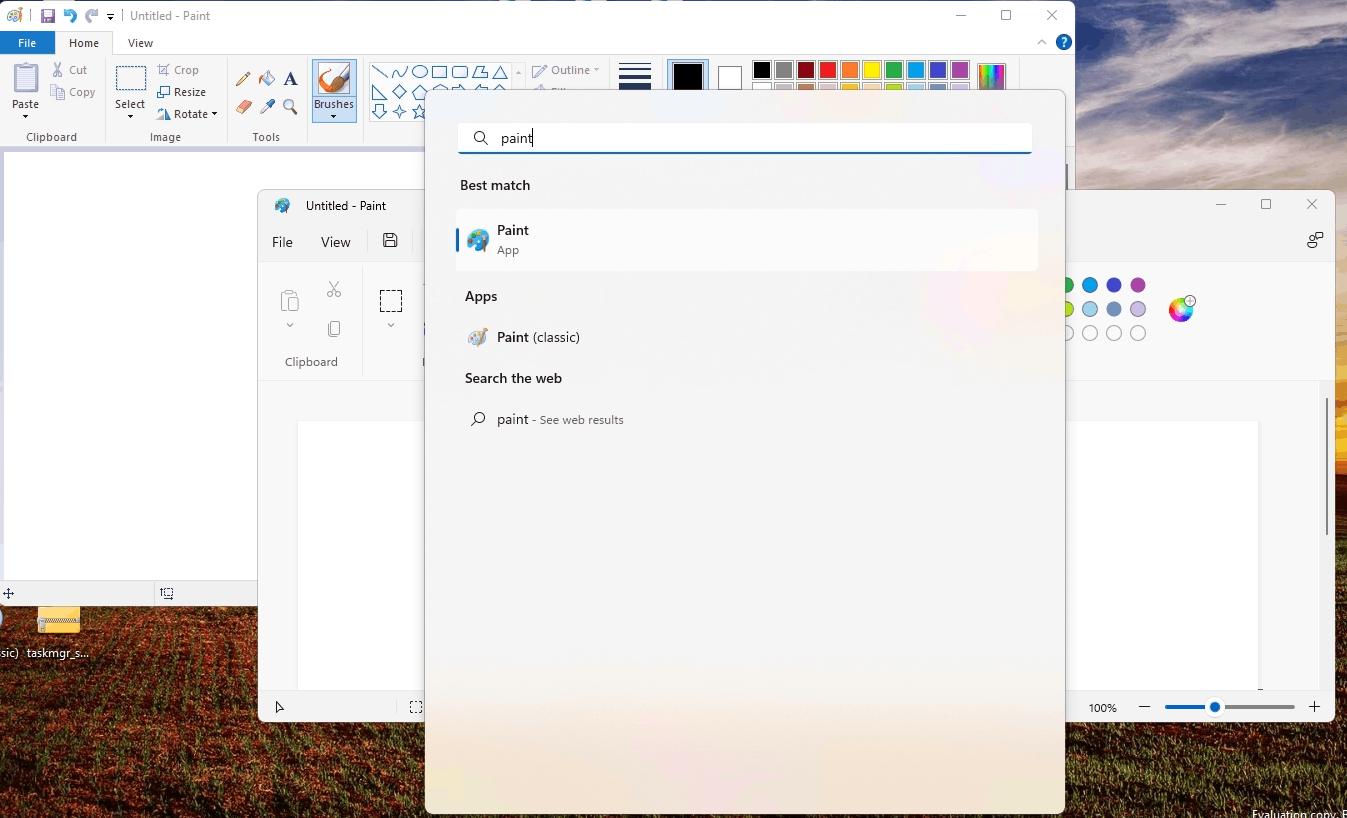
You will be able to launch it as "mspaint.exe" from the Run dialog or from the taskbar's search box or from the Start menu. No system files will be replaced. It will be installed alongside the default built-in Paint app.
You can even run them simultaneously. Just select the desired app shortcut from the Start menu, or launch both if you need. The Windows 10 version will be set as the default mspaint.exe app.
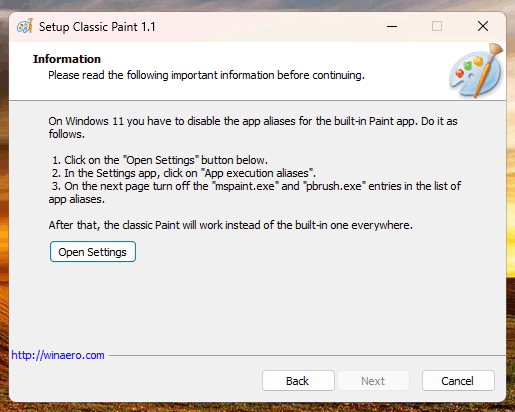
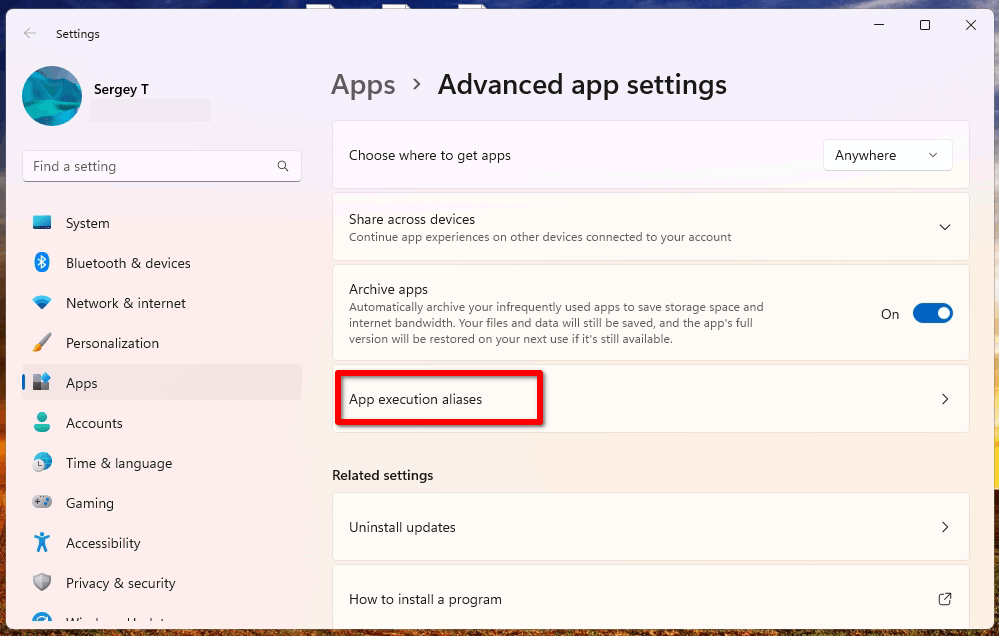
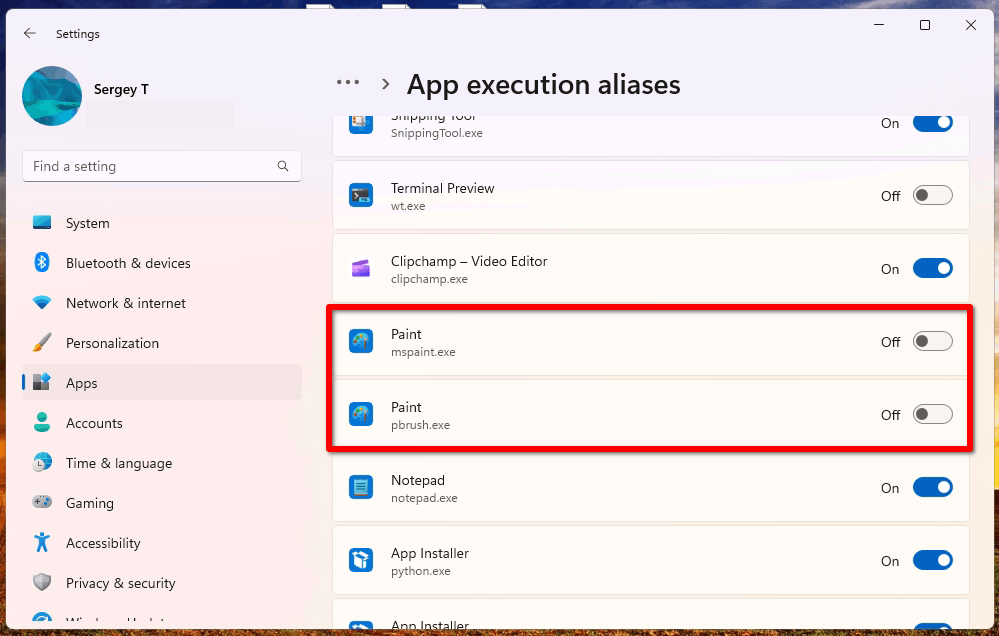
When installing, you'll be prompted to turn off the App execution alias in the Settings app. If you omit this step, you will have the default inbox mspaint.exe running by default.
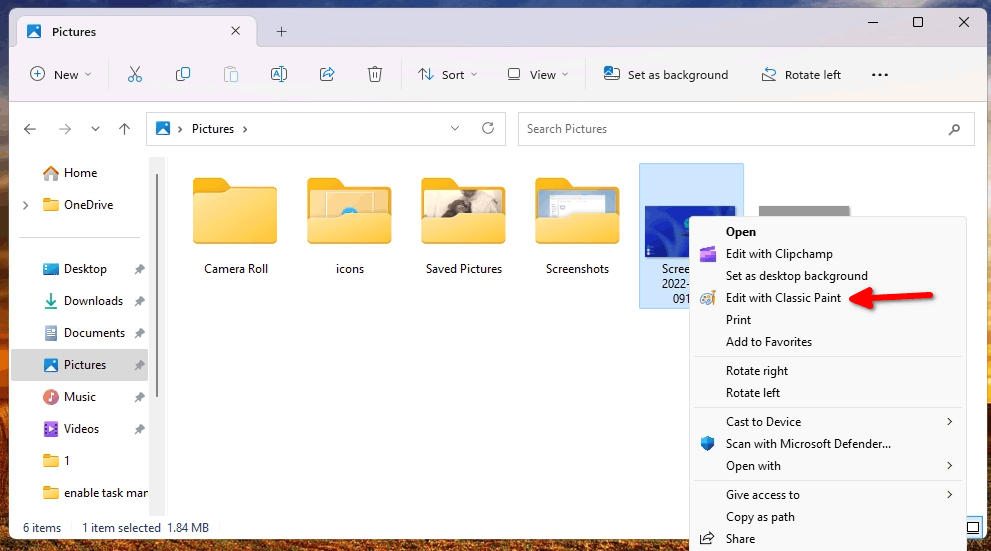
Besides, the classic Paint will be integrated into Windows, so it will be available in the context menu of images. Also, you can set it as the default app for any of its supported formats.
It supports all Windows languages and locales, so its UI will be translated automatically. The installer detects what languages you have installed in your Windows, and will provide the appropriate MUI files automatically. It comes with the following locales:
af-za, am-et, ar-sa, as-in, az-latn-az, be-by, bg-bg, bn-bd, bn-in, bs-latn-ba, ca-es, ca-es-valencia, chr-cher-us, cs-cz, cy-gb, da-dk, de-de, el-gr, en-gb, en-us, es-es, es-ms, et-ee, eu-es, fa-ir, fi-fi, fil-ph, fr-ca, fr-fr, ga-ie, gd-gb, gl-es, gu-in, ha-latn-ng, he-il, hi-in, hr-hr, hu-hu, hy-am, id-id, ig-ng, is-is, it-it, ja-jp, ka-ge, kk-kz, km-kh, kn-in, ko-kr, kok-in, ku-arab-iq, ky-kg, lb-lu, lo-la, lt-lt, lv-lv, mi-nz, mk-mk, ml-in, mn-mn, mr-in, ms-my, mt-mt, nb-no, ne-np, nl-nl, nn-no, nso-za, or-in, pa-arab-pk, pa-in, pl-pl, prs-af, pt-br, pt-pt, quc-latn-gt, quz-pe, ro-ro, ru-ru, rw-rw, sd-arab-pk, si-lk, sk-sk, sl-si, sq-al, sr-cyrl-ba, sr-cyrl-rs, sr-latn-rs, sv-se, sw-ke, ta-in, te-in, tg-cyrl-tj, th-th, ti-et, tk-tm, tn-za, tr-tr, tt-ru, ug-cn, uk-ua, ur-pk, uz-latn-uz, vi-vn, wo-sn, xh-za, yo-ng, zh-cn, zh-tw, zu-za
Finally, you can uninstall it like any other app. Head up over Settings > Apps > Installed apps, find Classic Paint, and uninstall it. This will revert all the changes to their defaults, and your default mspaint app will be the inbox app.
All the above software is copyrighted by its respective copyright holders. We do not own it, or sell or license it to you. Use it under your own responsibility. This software is distributed 'as-is', without any express or implied warranty.
This website is not affiliated with anyone. Built with Skeleton and Visual Studio Code.